
If you’re new to Genesis Framework, you might find this tutorial helpful. I’ll share code on how to create a widgetized homepage in Genesis Sample theme.
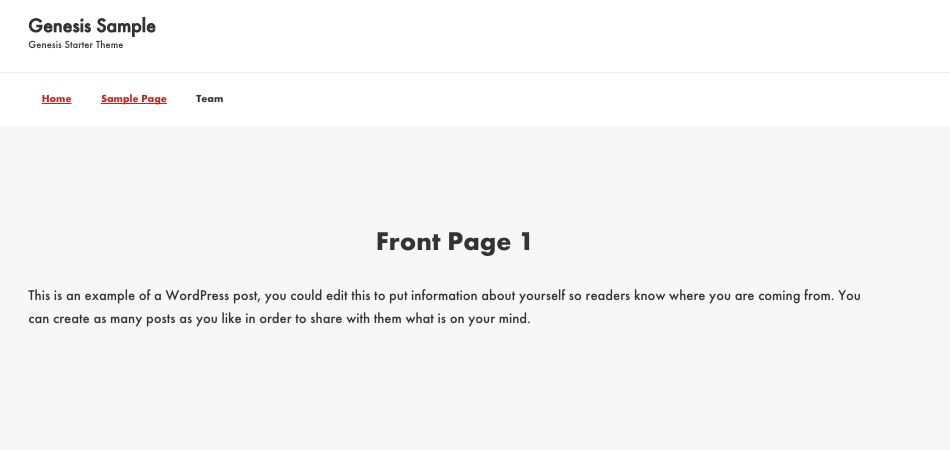
When you don’t have a front-page.php, you can use any existing page as your home page simply by using WordPress Settings > Reader.
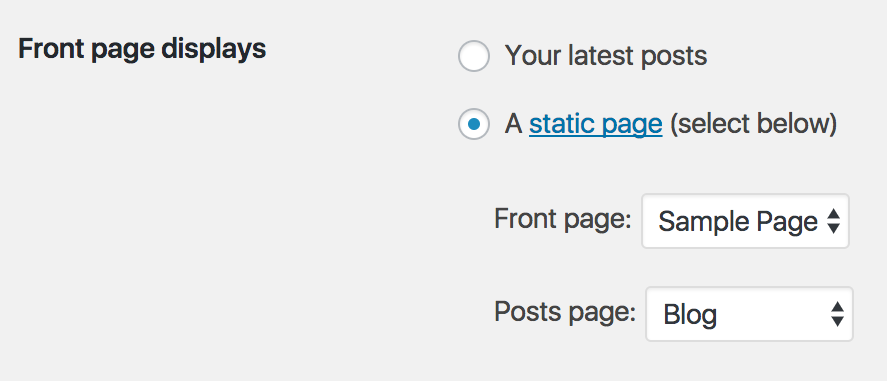
For example, in Genesis Sample theme, if you choose to show the Sample page as your home page using the above method. Your home page would something like this:
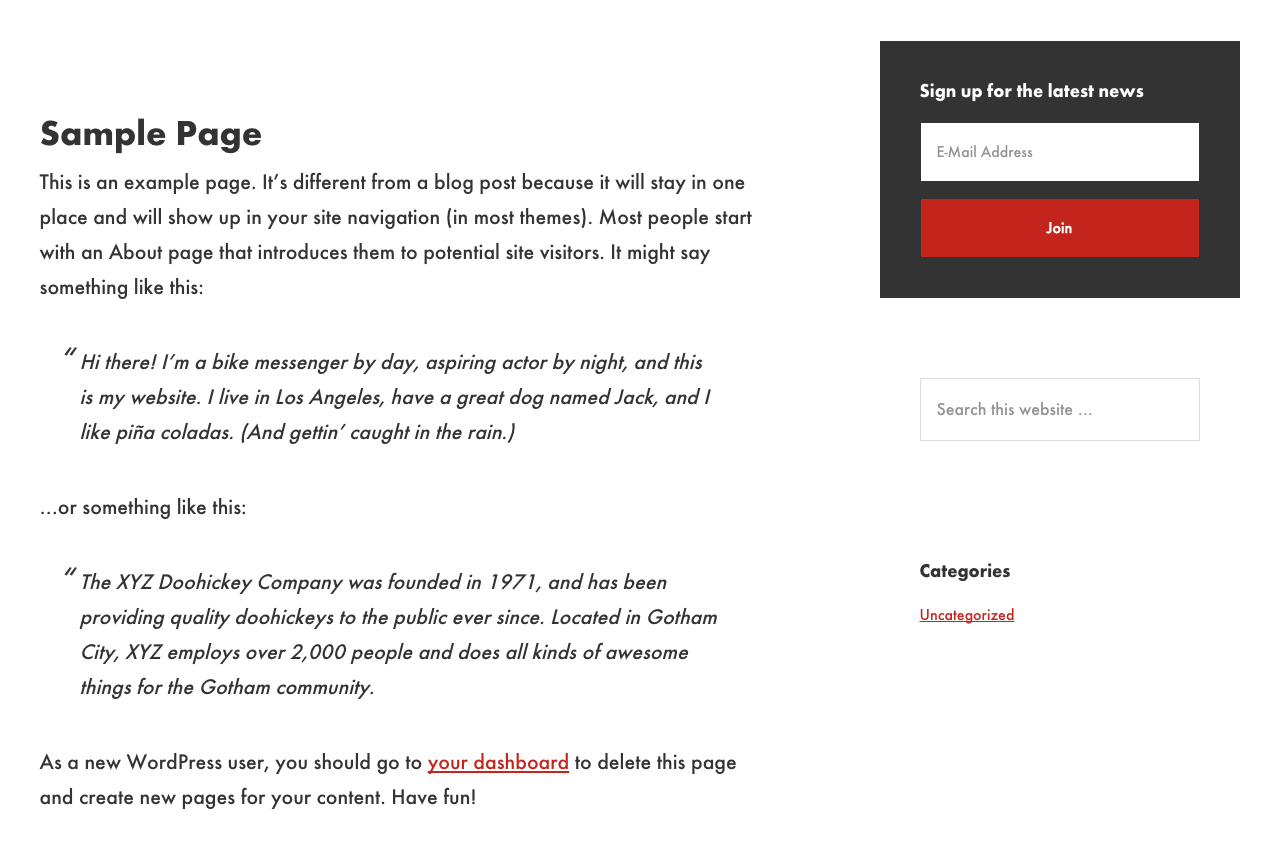
However, if you want to create a widgetized home page, you should create a front-page.php file within your Genesis Sample child theme folder. Please, note that the default Genesis Sample theme doesn’t contain any front-page.php file.
Create a front-page.php file inside your active theme folder and add the following code:
https://gist.github.com/topleague/efe704609165f6f0adf89d1a4b3e9e28
and, at this point, your front page will look something like this:
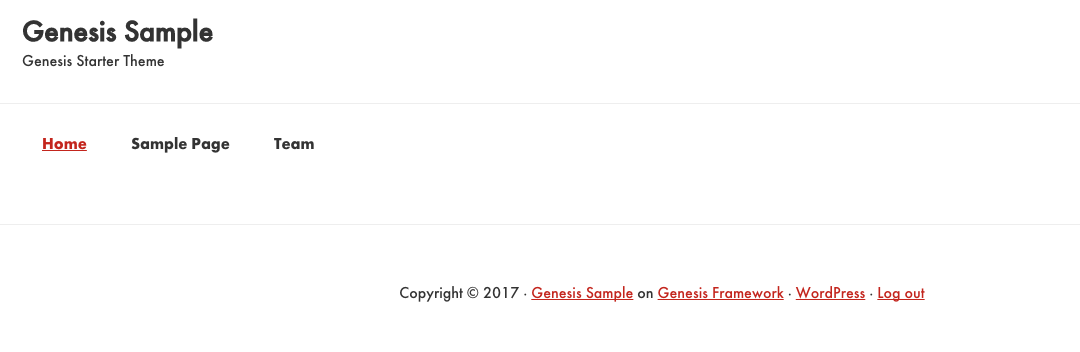
Note: You’re not seeing any footer here because the footer widgets are empty at the moment.
Of course, you must add additional code to our existing front-page.php file to make it look like a proper home page.
So, let’s do it!
Step #1: The home page looks empty right now. It doesn’t have any content or sidebar widgets.
Let’s add a widget and see how it looks.
To do that, we need to register a widget area in functions.php and then add it to the front page via front-page.php.
Here’s the code for functions.php
https://gist.github.com/topleague/47cc709a61e71d17d446bcff99fe8611
At this point, you can go to Appearance > Widgets and see the registered widget appearing as follows:
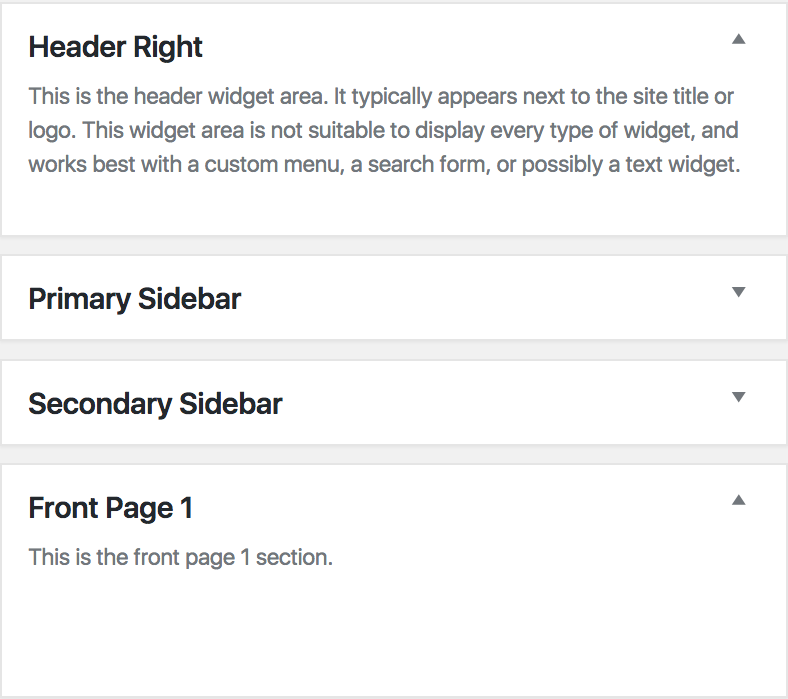
Here’s the code for front-page.php
https://gist.github.com/topleague/cc7805e3303984403f77c04250a03030
Add some content to your new widget.
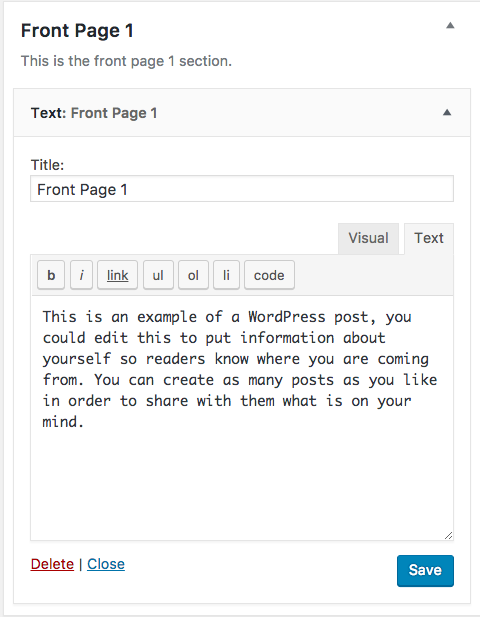
The home page should now look something like this:
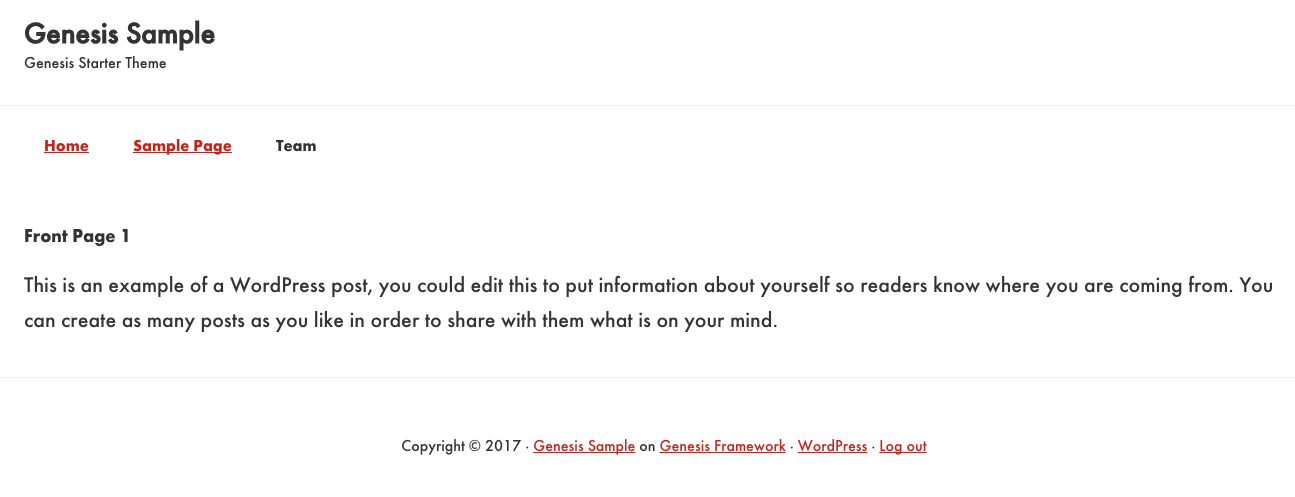
It looks bland, right?
Well, that’s because we haven’t added any css to the front-page.php
Step #2: Let’s create a style sheet and name it style-front.css.
Add the following code to the file.
.site-inner.full {
padding: 0;
max-width: none;
}.front-page-section {
padding: 150px 0;
}.front-page-section:nth-child(odd) {
background-color: #f7f7f7;
}.front-page-section:nth-child(even) {
background-color: #fff;
}.front-page-section .widget-title {
text-align: center;
font-size: 40px;
margin-bottom: 40px;
}
Then enqueue the style-front.css file to the front-page.php with the following code.
https://gist.github.com/topleague/0cd299d7c3c4521f6d4937dbda1e6fc8
At this point, the home page should look something like this:
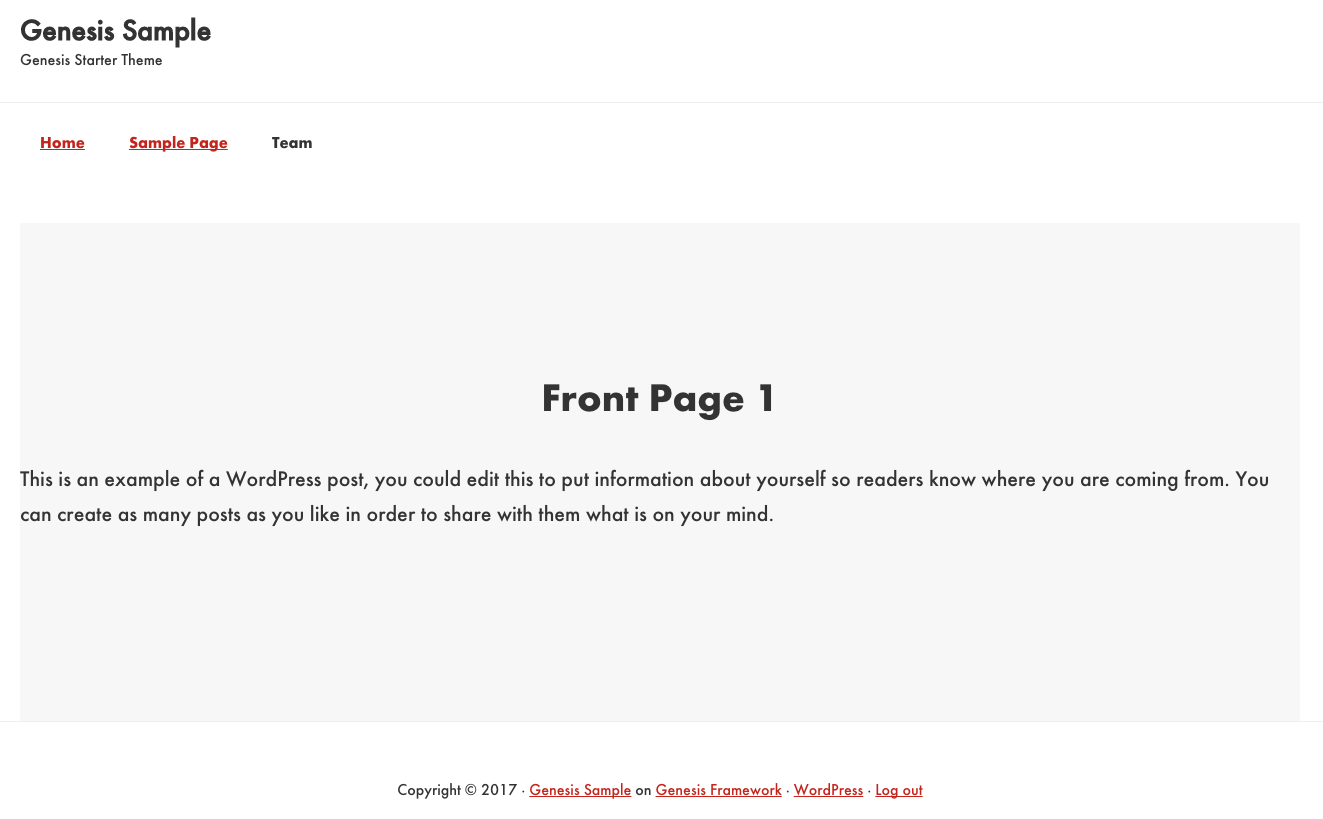
Step #3: As you can see, the widget is not wide enough.
Let’s add some class attributes to make it full width and use the attributes from .entry.
Add the following code to front-page.php.
https://gist.github.com/topleague/e6a7a2e4b1158cc9aeffa089b9870008
Want to add one more widget, maybe?
Let’s register another widget and display on the front page. Add the following code to functions.php
https://gist.github.com/topleague/73ca2a67350f4cf3a6c470bc121623f4
Display the widget content on front page. Add the following to front-page.php
https://gist.github.com/topleague/e53debbbfdacab42164aec14fd486a32
Here’s what it looks like at this point:
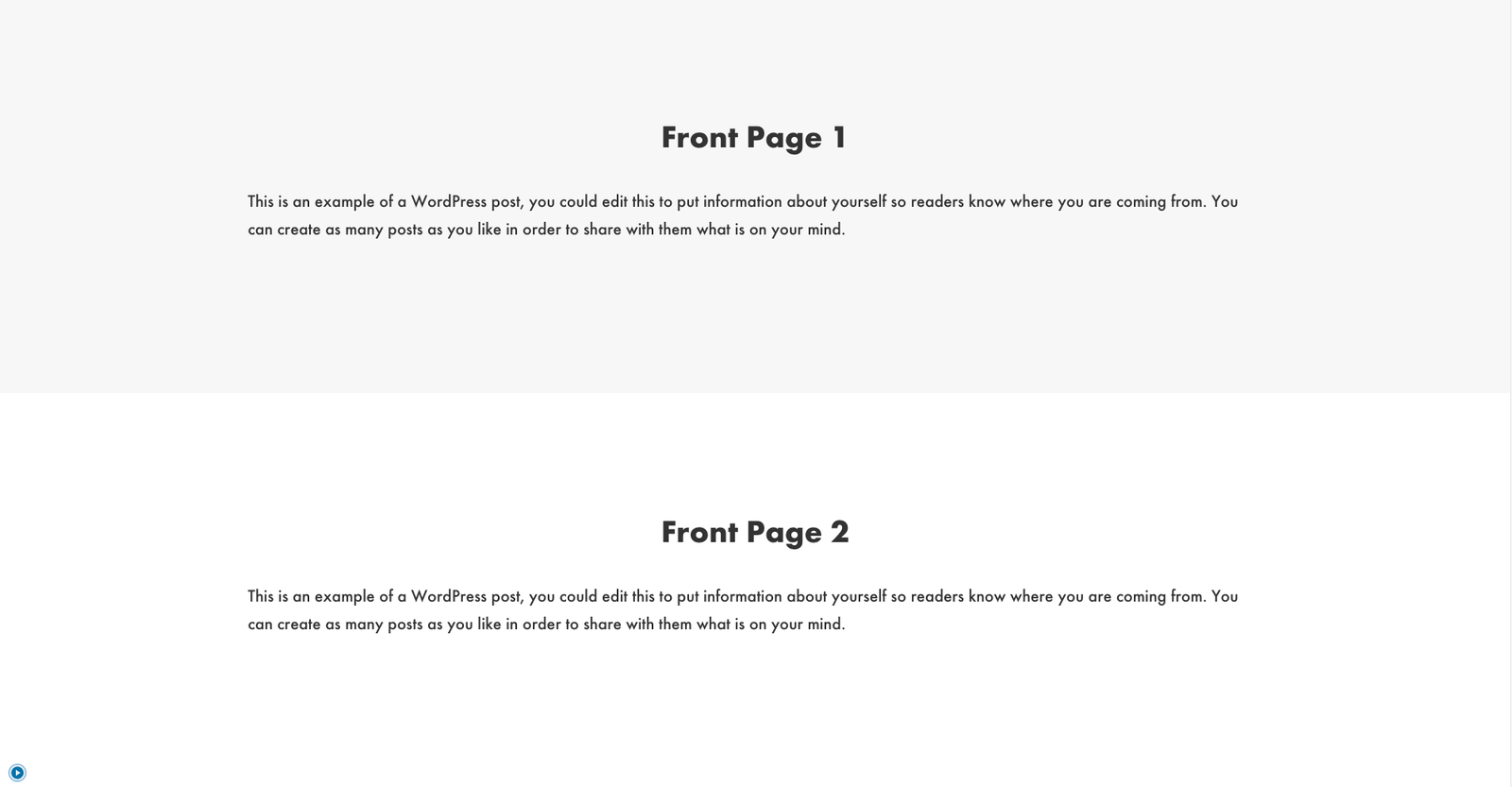
You can add more widgets if you want – just remember to:
- Register a widget in the
functions.phpfile. - Add code on
front-page.phpto display widget content on home page. - And, add appropriate
cssto yourstyle-front.css
There you go! Now you have a full-width widgetized home page in Genesis Sample.
Let me know if you have any questions!
Reference: Sridhar Katakam
Comments
4 responses to “How to Create a Widgetized Homepage in Genesis Sample”