

Journal theme is a cool, neat and light-weight Genesis child theme (free) released by the very talented and creative by Rafal Tomal from StudioPress.
It’s very creatively built and ideal for a personal blog.
The minimalist and mobile-first theme has a slew of cool features – an “about the author” area, a fly-out primary sidebar menu, and a super cool full-width single post template.
In this post, I’m going to show you how to replicate the single post template of Journal Theme.
I’ll use a Genesis Sample Theme as a starter theme and modify the functions.php and style.css file to add and remove some code to achieve the desired results.
CAVEAT: If you’re not familiar with modifying theme files using FTP, please don’t risk breaking your site.
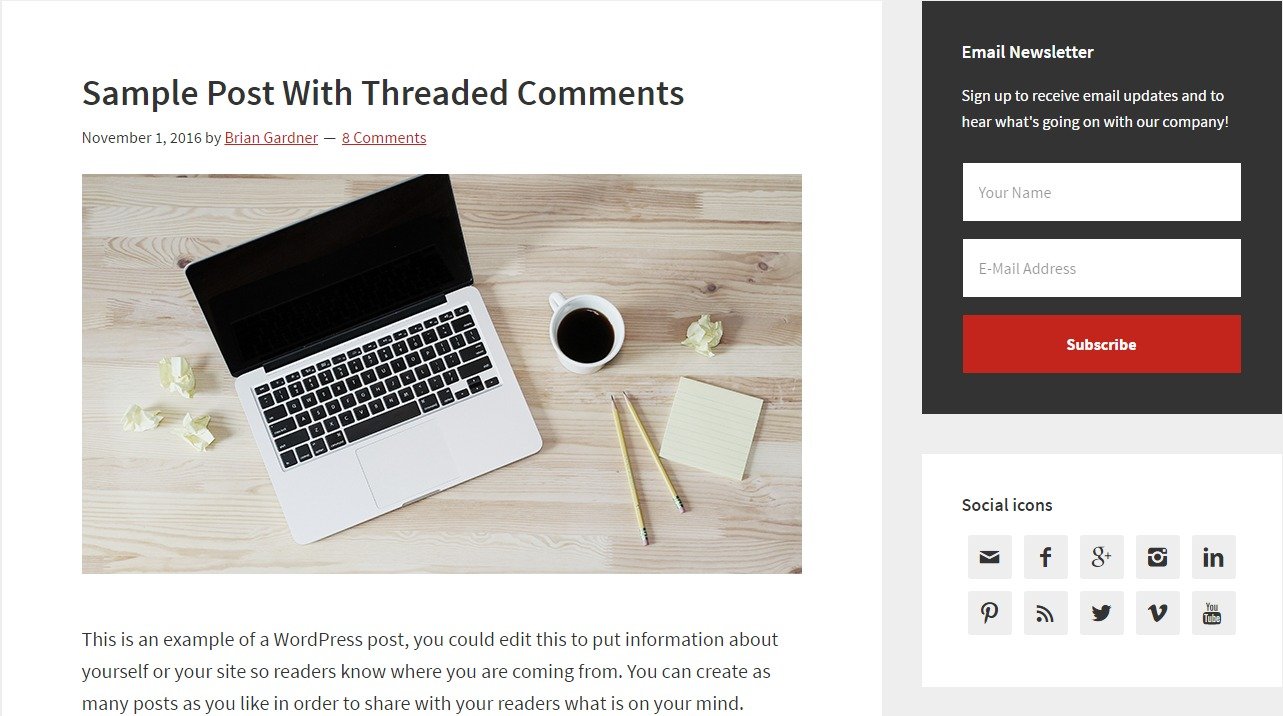
Before we move forward, I’d like to share with you a BEFORE and AFTER screenshot of what a single post.
BEFORE (Default Single Post Template in Genesis Sample)
AFTER (Customized Single Post Template to Replicate Journal Theme)
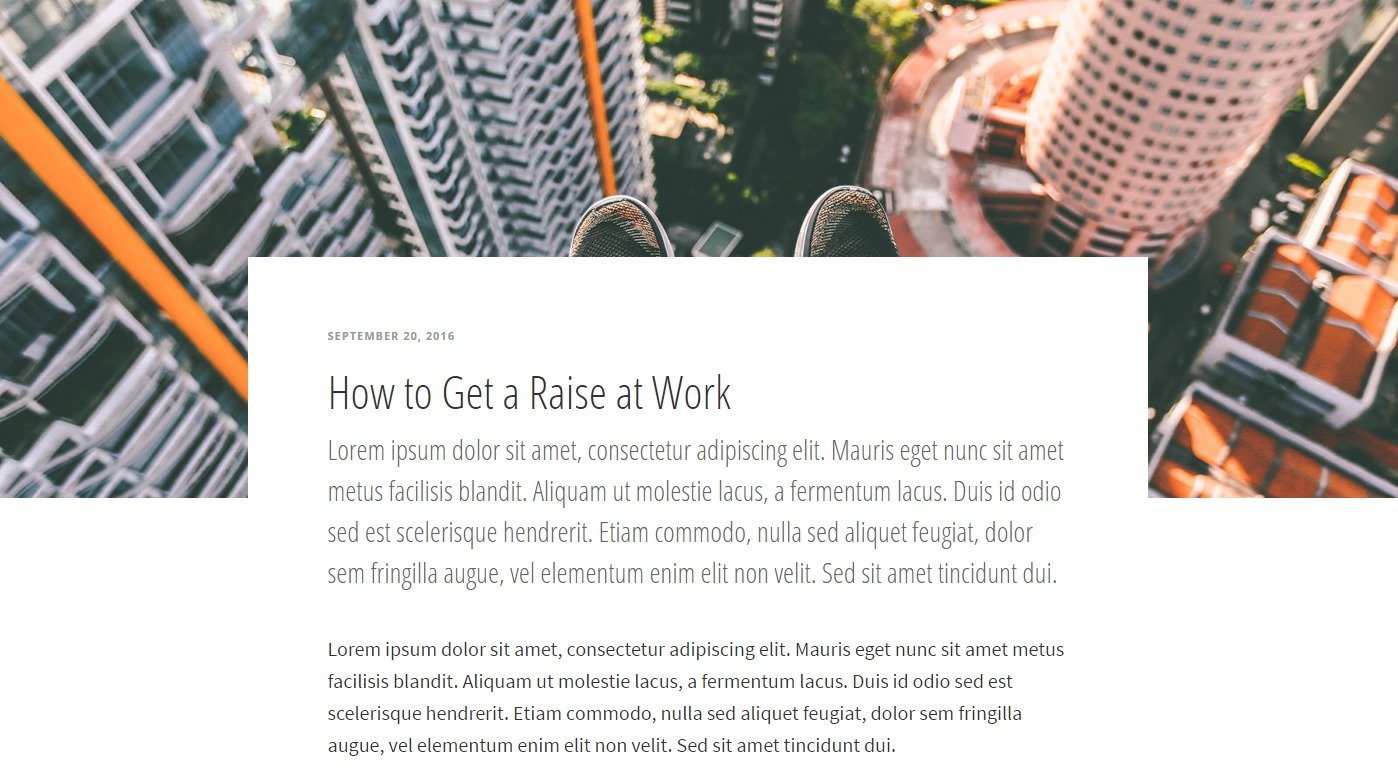
Please, note that the Journal Theme’s single post uses a full-width template. Therefore, you need to choose the full-width template under theme settings as well.
Moreover, you need to use a featured image having a 1400 x 500 dimension.
Let’s Do This
Step #1: Add the following code to your active theme’s functions.php file
https://gist.github.com/topleague/9a75c390364cf64e5ae79b4af763a960
Step #2: Add the following code to your active theme’s style.css file
https://gist.github.com/topleague/6e72e419e337acc4ce6b5a3e4998bc72
Let me know if you have any questions.
Comments
2 responses to “How to Replicate Single Post Template of Journal Theme”
Thanks a lot, I was searching for this method for quite a long time.
Because of your efforts today i am going to replicate single Post Template of Journal Theme in my new blog.
Thanks a lot again.
Hey Dipam,
Thanks for stopping by! Glad it helped you!