

In this tutorial, I’ll share tips on how to create a magazine template using CSS Grid. The front page bears striking similarity with News Pro child theme in Genesis.
We will create a custom loop on front-page.php, register and display some widget areas. And, style it using CSS Grid.
So, let’s do it.
Step #1: Add the following code to your functions.php file to register widget areas
https://gist.github.com/topleague/5079adf9d880a6c984c445da6b537cc5
Step #2: Create a front-page.php file and add the following code
Here, we are essentially creating a custom template featuring content-sidebar layout. Most importantly, we’re creating a custom loop and displaying our previously registered widget areas.
https://gist.github.com/topleague/1c1ffa32bb64f80fdfb657b4a4f39281
Step #3: Style it with CSS Grid
This is where the magic happens. With CSS Grid, you can display the widgets in a magazine or news theme format. What’s more, you can choose to display any pattern you like simply by playing around with the CSS code.
https://gist.github.com/topleague/4462054bc1ca7f5d3048bca31bbf15d8
Step #4: Add Genesis Features Posts Widgets
Drag and drop as many widgets as you want. For this tutorial, I’ve added four widgets. If you add more, you may have to change the CSS accordingly.
That’s it! Now, hard refresh your browser, and enjoy the fruit of your labor.
Note: If you want to show multiple posts/pages on the top widget box, install Genesis Responsive Slider plugin. Don’t forget to customize the settings to match your theme.
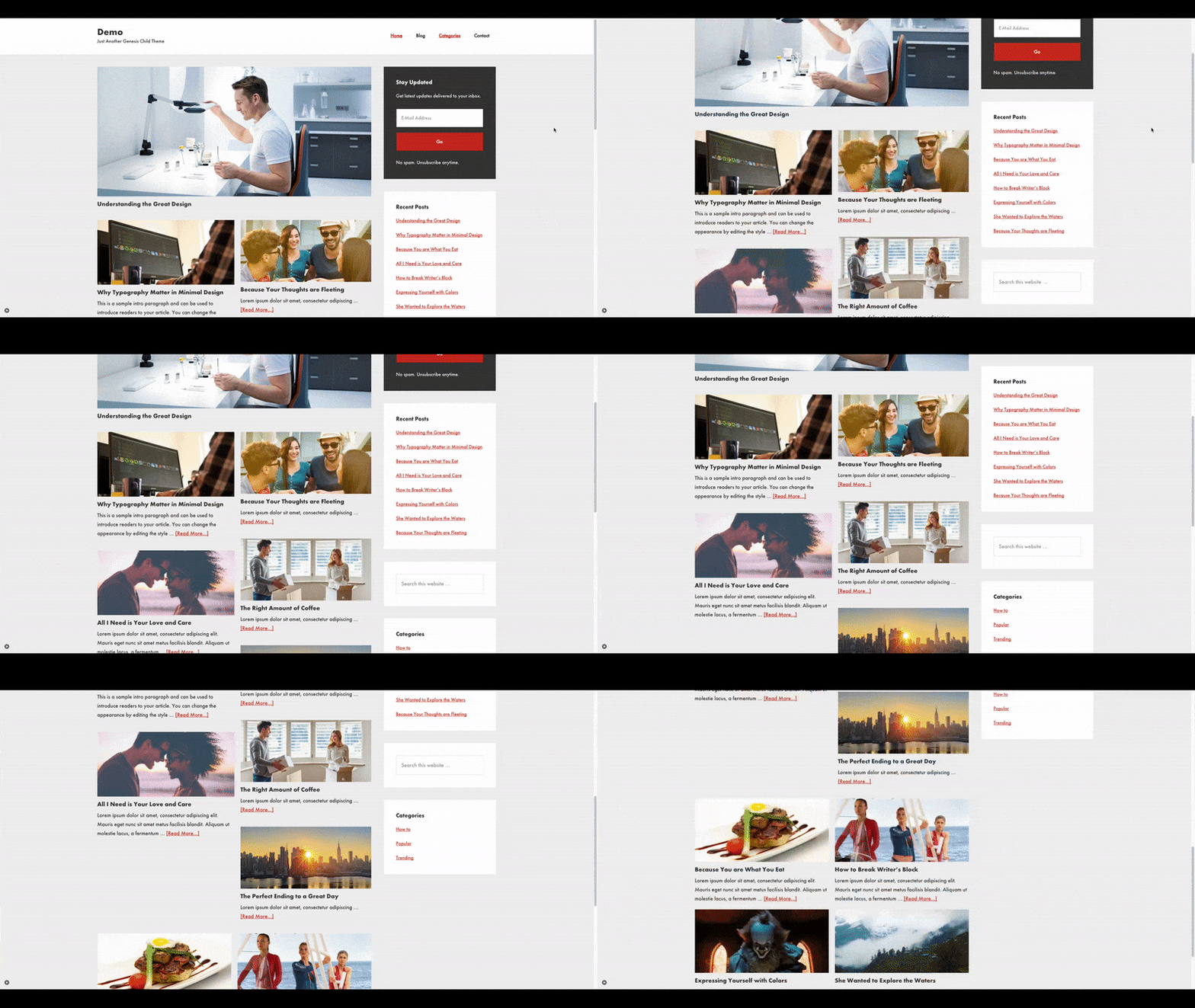
If you’re curious, here’s what it looks like.
Let me know if you have any questions.