

Fadeup Effect is a popular animation used in modern themes these days. It essentially adds a delay effect to specific containers within your theme, making theme load slowly.
In Genesis, the Fadeup effect has been in popular child themes including Infinity Pro, Digital Pro, and Monochrome Pro.
Here’s Fadeup Effect in Action in Infinity Pro theme.
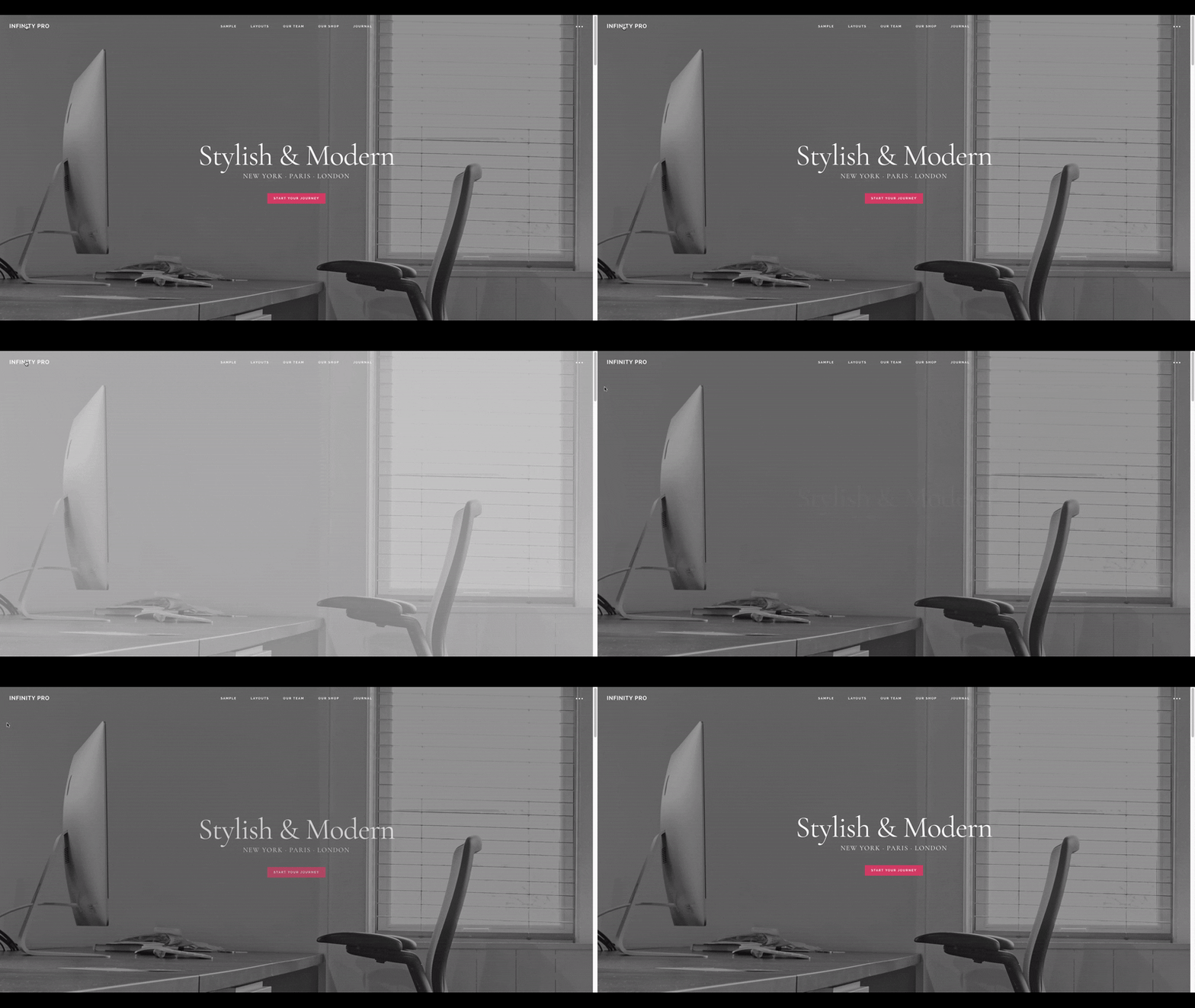
In this tutorial, I’ll walk you through the process to create fadeup effect in any Genesis child theme.
Before we start, I’d like to give you two different options.
Option #1: In this scenario, you’d like to add fadeup effect to your main container. It doesn’t require any script. Only add some code to functions.php and style.css.
Option #2: In this scenario, you’d like to add fadeup effect to specific containers (such as widget sections on front-page). Here, you will need to add script to your js folder apart from enqueuing it from your functions.php. Moreover, you will need to add a class to your registered widgets, and finally, add the css code to style.css.
So depending on your animation goals, you can follow either of these methods required for your project.
For this blog, I’ve used the Option #1 method. You can refresh this page, and see it in action.
Okay, let’s go ahead and see how to crate fadeup effect in Genesis child themes.
Fadeup Effect in Site Container on Page Load
Add a Class to Site Container
Add the following code snippet to your functions.php file.
https://gist.github.com/topleague/cb118777afb052809a77d25a0bf2b869
Add CSS Animation
Add the following code snippet to your style.css file.
https://gist.github.com/topleague/e70643590a31b299049df2ce3cc181ac
Reload your page, and see it in action.
NOTE: Did you know you can add css classes and attributes to any html elements in Genesis? You can animate practically any section of your Genesis site following the above method for animation. Here are some more code snippets to help you with your creative juice. Just remember to make appropriate changes in your css changes.
https://gist.github.com/topleague/0ad00439e490c73dcacb768a313b942e
Neil Gowran from WP Beaches has a very useful list of table containing majority of the contexts and their corresponding filter names if you’re super curious.
Fadeup Effect in Front Page Sections on Page Load
As explained earlier, this method will take four steps (or fewer).
Step #1: Create a fadeup.js file inside your child theme’s js folder, and add the following code
https://gist.github.com/topleague/1ec3c5b94373a41e41aa45844b7c3488
Step #2: Open your functions.php file and add the following code where other scripts and styles have been enqueued.
https://gist.github.com/topleague/c10fc39c392fded9f3a26b2dbe3baa59
Step #3: Either add a class to your existing registered widgets or create/display a new widget as shown below.
https://gist.github.com/topleague/57d783a6cb42cb67269de08b2866017f
If you don’t have a front-page.php, you want to add the above snippets inside your functions.php.
Step #4: Add the following code snippet to your style.css file.
https://gist.github.com/topleague/63dbe2ea9054d7aad5a22505f1a52757
Reload your front page and see it in action.
That’s all. Hope you find this useful.
Comments
3 responses to “How to Create FadeUp Effect in Genesis”
How can you remove the fade up effects in the default of the infinity pro theme?
Awesome stuff THANK YOU!!!
Thank you! Very useful.